
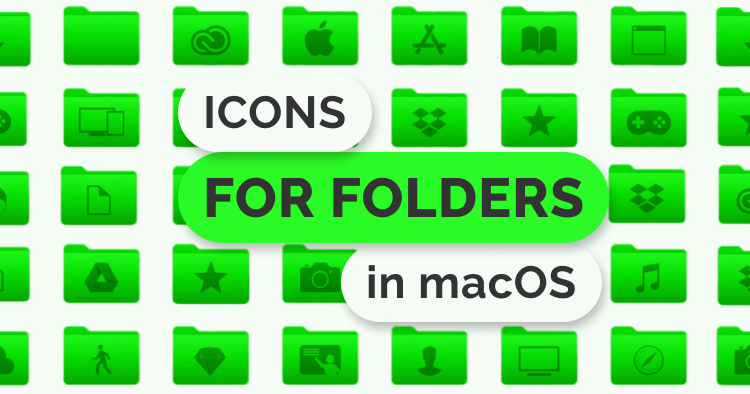
One way to make your MacOS desktop more organized and personalized is to change the folder icons. Change icons for folders can be done quite easily, and no additional programs are required for this.
First of all, you need to select the image you want to use as the icon for the folder. Images can be found on the Internet or created independently. If you surf the Internet, you can find free MacOS icon packs that you can use in your projects.
After selecting the image, you need to save it in “.icns” or “.png” format. If you are using a “.png” image, you will need to convert it to “.icns” using the “Preview” program that comes with MacOS.
Next, you need to open the “Get Info” window for the folder you want to change. This can be done by right-clicking on the folder and selecting the “Get Info” option. The “Get Info” window contains information about the folder and its properties.
Open the file with the image you want to use as an icon in the “Preview” program. Select the entire image and copy it (CMD+C). Return to the “Get Info” window and click on the folder icon in the upper left corner of the window. Paste the image by pressing “CMD+V”.
The icon for the folder will now be changed to the one you selected. If you want to change the icon for many folders, it can be done quite quickly using the “Copy” and “Paste” function of the “Get Info” window.
Change icons for folders – why?
Overall, changing the icons for folders in MacOS is a simple and effective way to personalize your desktop and make it more organized. You can use your own images to create icons for your folders and directories, or you can use icon sets that are available online.
For example, to change the icons for the folders on your desktop, you can use the “Paste” function of the “Get Info” window to quickly copy and paste the icons to each folder. You can create your own icon themes to make your MacOS desktop more personalized and expressive.
If you want to find more tools and programs to change icons in MacOS, you can search the Internet. There are many programs and extensions that allow you to change folder icons on MacOS, including “LiteIcon”, “Folder Icon X” and “Icon Set Creator”. They can help you make your MacOS desktop more personal and customizable.
All of these tools allow you to change icons for folders, files, and programs in MacOS, allowing you to personalize your desktop the way you want. Changing icons is a simple and effective way to make your MacOS desktop more personalized and organized, and to make it more user-friendly.